The thirty second version
Open the timeline. Put your cursor on it and drag sideways. You are now travelling through history. Scroll to zoom out until centuries pass under your hand, or in until a single week opens up. Click anything that looks interesting.
That is the whole thing. The rest of this page is for when you want more control.
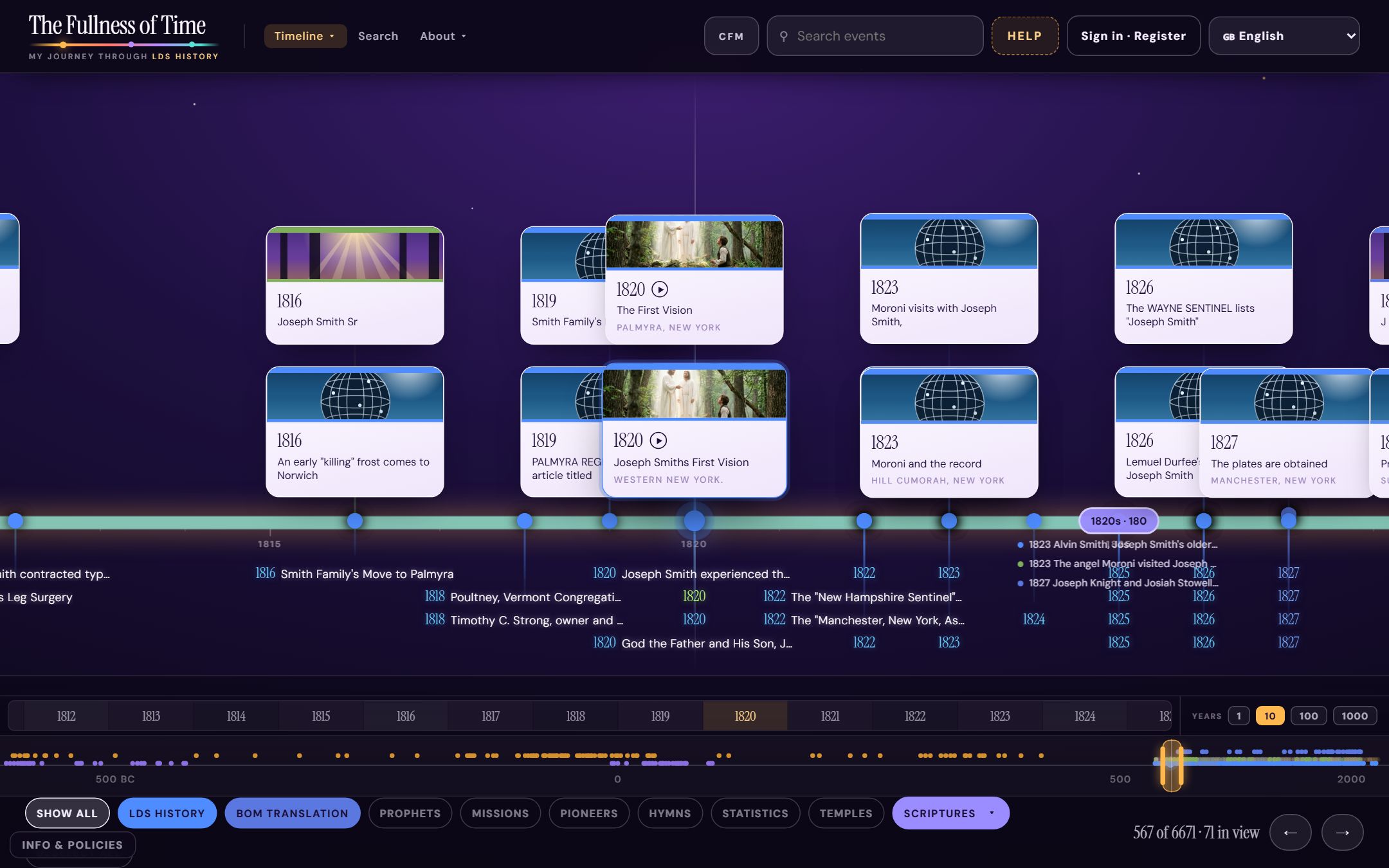
Travelling along the line
There are three ways to move, and they all do the same thing. Use whichever suits the machine you are on.
| Mouse | Drag left and right to travel. Scroll to zoom. Click an event to open it. |
|---|---|
| Touch | Swipe to travel. Pinch to zoom. Tap an event to open it. |
| Keyboard | ← and → to travel. + and − to zoom. Tab to an event, then Enter to open it. |
Full keyboard detail, including what works with a screen reader, is on the accessibility page.
Jumping to a scale
Along the bottom right there are four buttons marked 1, 10, 100 and 1000. These are years per division. Press 1 and a single year fills the screen. Press 1000 and you can see from the Creation to the present in one view.
Zooming is worth doing deliberately. The point of the site is distance, and you only feel distance when you change the scale and watch the gaps stretch.
Reading the line
Above the line and below it
Major moments carry a photograph and sit above the rail. Everything else drops below as a dated label you can still click.
This is not a ranking of importance so much as a way of keeping a crowded period readable. Nauvoo alone has over 1,400 dated entries. If every one of them had a card, none of them could be read.
The coloured ribbon
The band running through the middle of the line shows who was leading at the time. Drag through the 1840s and it changes at the point leadership changed. It answers “who was President when this happened?” without you opening anything.
The counter
In the bottom right you will see something like 567 of 6,671 · 71 in view. The first number is how many entries match your current filters, the second is how many exist in total, and the third is how many are on screen right now. If the line looks emptier than you expected, check that counter before you assume something is missing.
Opening an event
Click any card or any dated label. The event opens with the account of what happened, where it happened, and which published sources say so. No event is a bare label with a date attached.
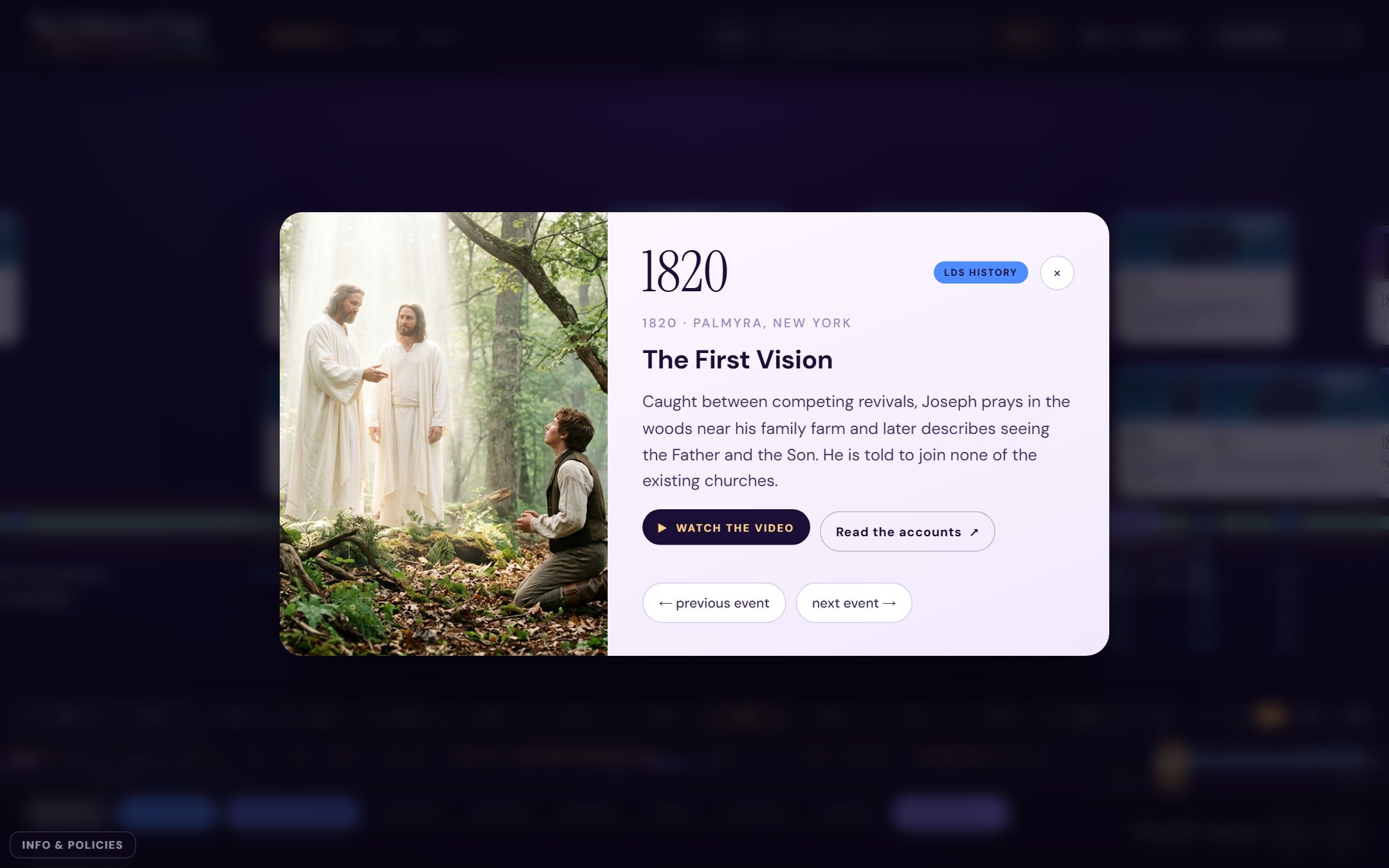
Where a date is contested, both dates are shown and the disagreement is stated on the event itself. Nothing is quietly tidied up to make the line look neater. There is more on that on the sources and method page.
Showing less, and finding one thing
The category buttons
Along the bottom of the timeline is a row of buttons: LDS history, Book of Mormon translation, Prophets, Missions, Pioneers, Hymns, Statistics, Temples, Scriptures. Each one switches a strand of the record on or off.
This is the most useful thing on the page and the most often missed. If you are preparing a lesson on temples, press Show all to clear everything, then press Temples. You now have the temple story on its own, in order, with nothing else competing for the space.
Search
The Search events box at the top searches every entry in the database, not just the ones on screen. Names that appear under different spellings across sources resolve to the same record, so you do not need to guess which spelling was used.
Study mode: Come, Follow Me
Press CFM at the top of the timeline. The history gives way to the year's study course, with every week laid out at the point in time where the passage happened.
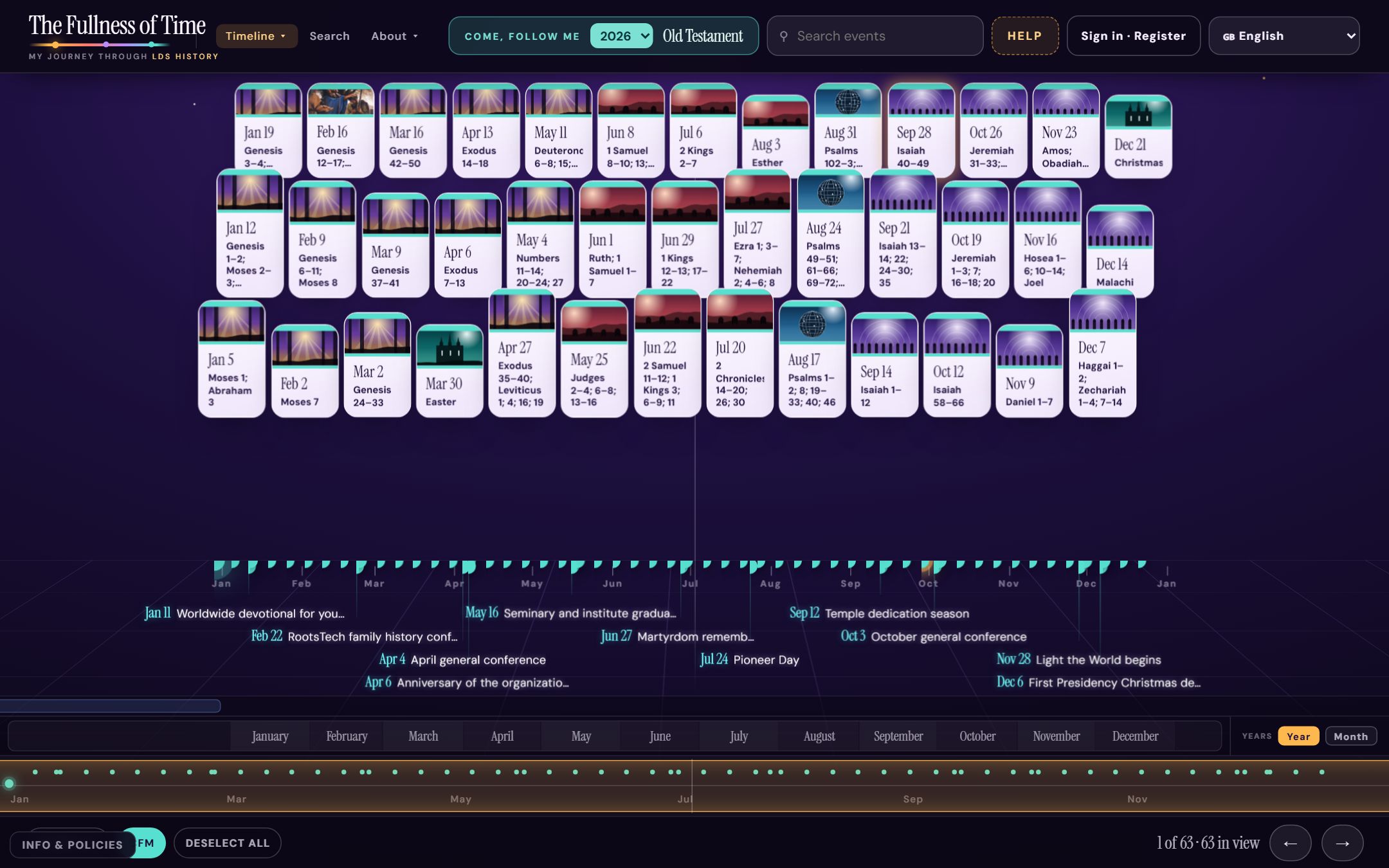
You do not read about Sinai in the abstract. You read it standing at Sinai's place in time, with the events on either side visible.
2026 is the Old Testament year. Earlier years stay available from the dropdown, so you can go back to the Doctrine and Covenants year or the Book of Mormon year whenever you want.
The scripture study page
Scripture study is a quieter, list-shaped view of the same material, for when you want to read rather than explore. It has four tabs.
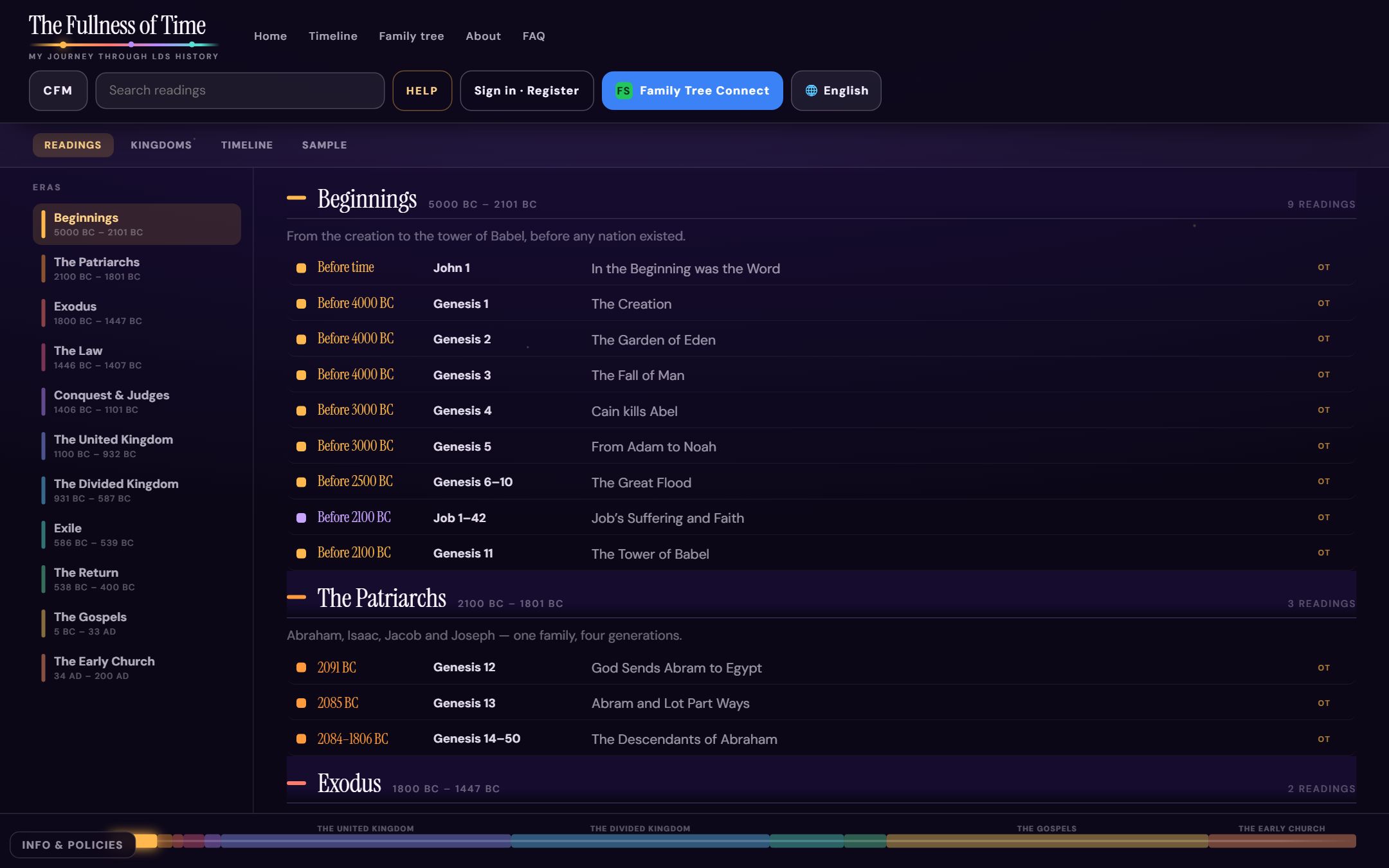
| Readings | Every passage in date order, grouped into eras from Beginnings to the Early Church. |
|---|---|
| Kingdoms | Empires, kings of Judah, kings of Israel and the prophets, drawn as bands so you can see who overlapped whom. |
| Timeline | The same readings on the moving line. |
| Sample | A short worked example, if you would rather be shown than told. |
The Kingdoms tab opens at 4000 BC, which is before any of the bands begin. Drag right and they appear. That is the point of it: the long emptiness before Egypt is itself information.
A Light to the World
A Light to the World is a separate view: every temple on a map of the world, appearing in the year it was dedicated.
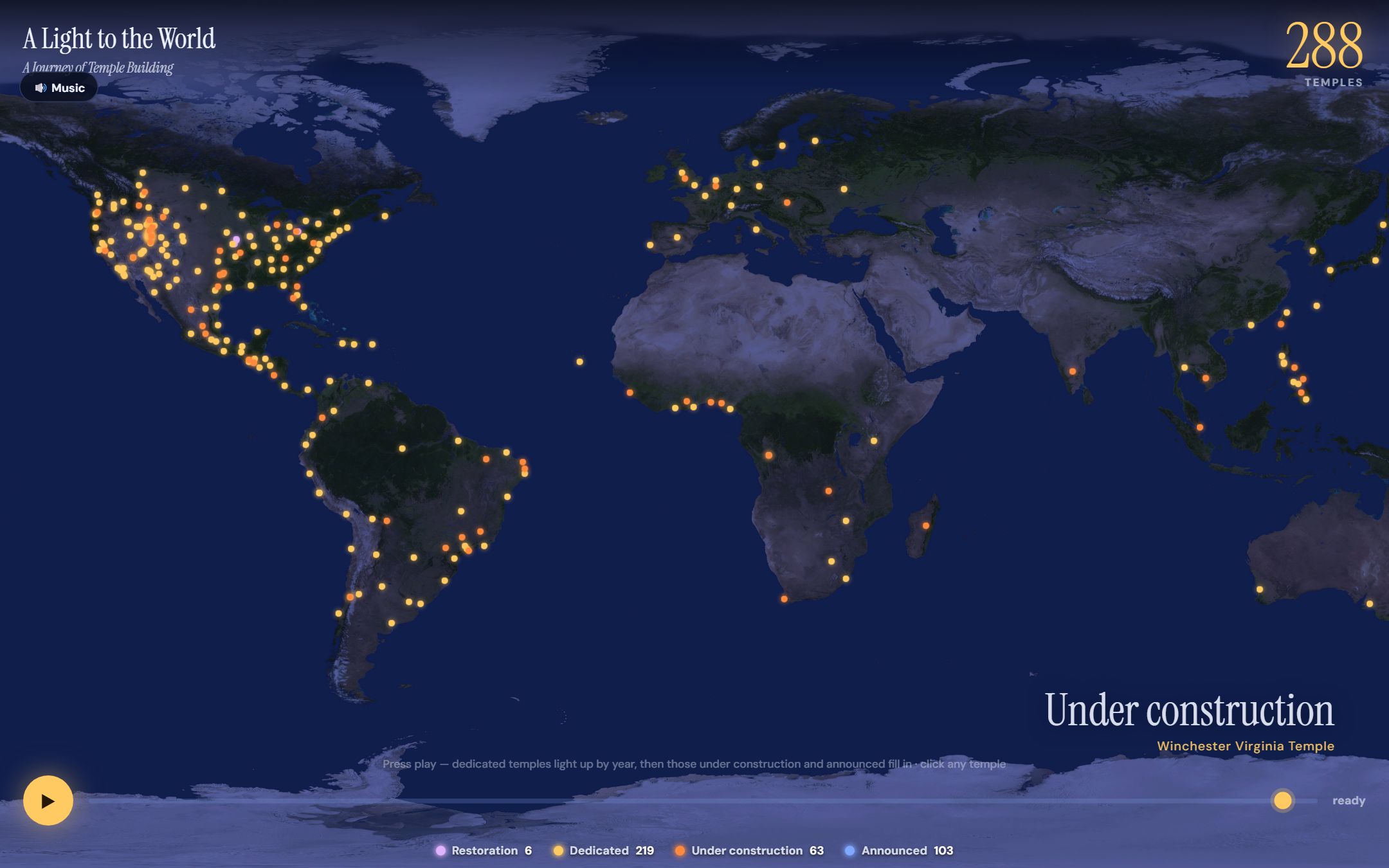
Press the round play button in the bottom left. Dedicated temples light up year by year, then those under construction and announced fill in. You can drag the slider to jump to any point. Click any temple to open its page.
There is a music track. The speaker button in the top left turns it off.
Reading it as pages instead
Some people do not want to drag anything. The history, era by era is the same record written out as ordinary pages, one era at a time, from the Creation through to a worldwide Church.
Each era page opens with a short written introduction, then lists every dated entry in that era with its sources. It is the better choice for printing, for reading on a slow connection, or for working through a period properly rather than skimming it.
On a phone
Everything works on a phone. Nothing is removed on a small screen, it is only rearranged.
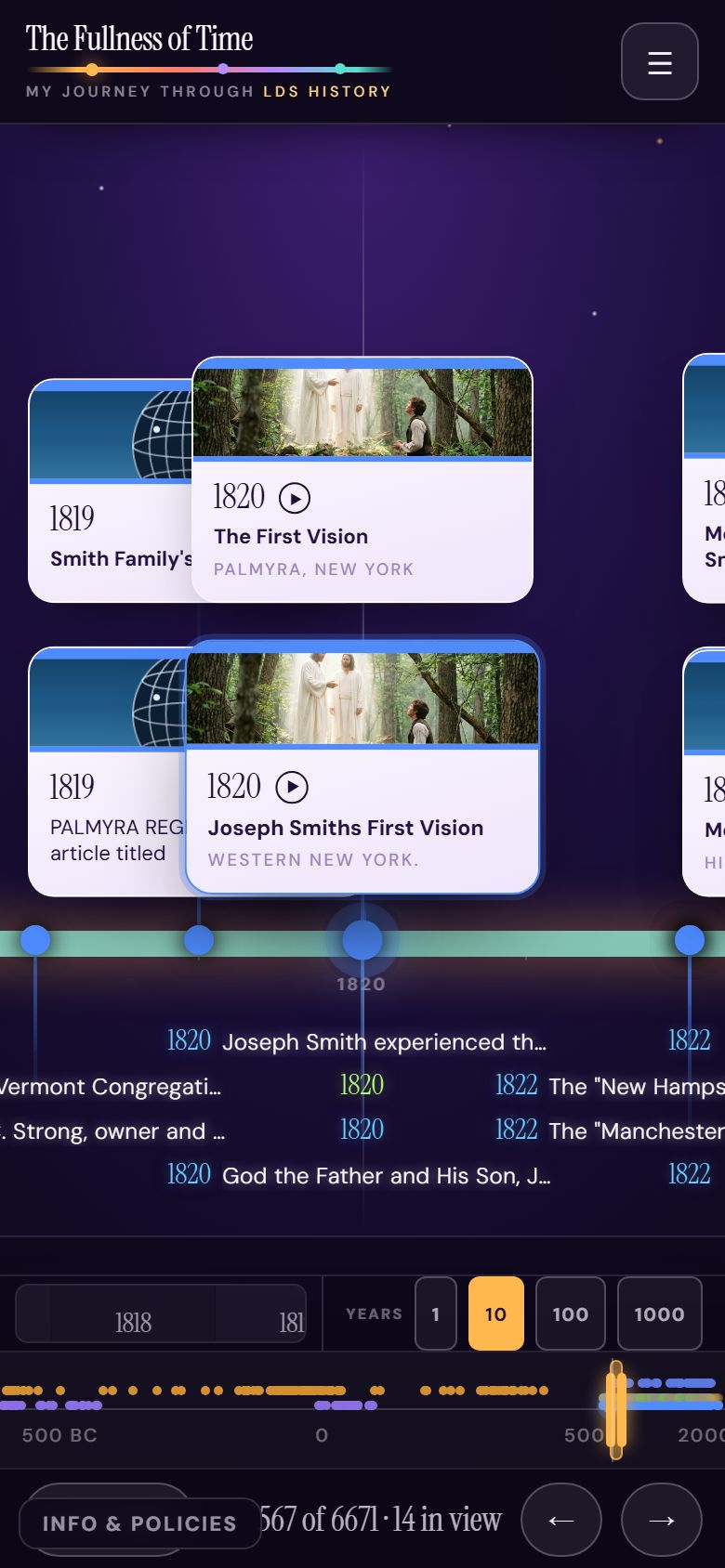
Pages you have already visited stay readable without a connection. Search and new event detail need a connection, because entries are pulled from a live database as you ask for them.
Reading it in your language
The language menu sits at the top right of the timeline. The interface, the dates and the study links are available in thirteen languages.
Event descriptions are being translated a piece at a time. Where a translation does not exist yet you will see the English text rather than an empty space. That is deliberate. A gap helps nobody.
What is not ready yet
Two things are described elsewhere on this site as plans, and it is worth being plain about them here so you are not left hunting.
- The family tree is not open. The intention is that your own ancestors run in a lane of their own beneath the historical events. It is being built. Until it works, the page is a holding notice.
- The Memories upgrade cannot be bought. The page describes it and quotes a price, but no payment processor is connected. Nothing will take your money today.
We would rather say this out loud than let you find it by clicking.
When something looks wrong
Dates in this field genuinely move. If you think one here is wrong, that is worth reporting, and it is worth doing properly.
Send three things through the contact page: the event name or a link to it, what is wrong, and a published source if you have one. Corrections that arrive with a source are usually applied within a week.
The person who reads that message is the person who fixes it. There is no support queue to fall into.
Now go and use it
Open the timeline and drag. If you get stuck, the Help button at the top of the timeline repeats the basics, and the FAQ answers most of the rest.